Check marketplace photos for addresses, labels and reflections
A product photo can include details that have nothing to do with the item: a shipping label, a receipt on the table, or your reflection in a screen. Make a separate copy for your listing and review both its metadata and its visible contents before uploading it.
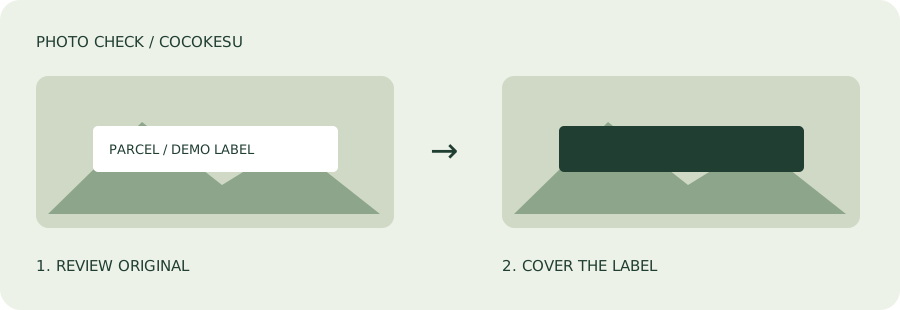
Set up the photo before you edit it
Move mail, cards and labeled packaging outside the frame. Look at shiny surfaces from the camera's position: a monitor, metal panel or mirror may show more of the room than you expect. Keep the product's condition visible. Covering a private address is different from hiding damage that a buyer needs to see. Check your marketplace's rules before editing listing images.
- Remove labels and personal paperwork from the scene.
- Inspect reflections and the edges of the frame.
- Keep clear views of defects, accessories and product details.
Separate GPS tags from visible clues
GPS can be stored as additional information in an image file. An address printed on a box is part of the picture itself. Removing one does not remove the other. Google Photos also notes that landmarks can reveal a location even when location details are not shared. Review both layers rather than treating a metadata check as an all-clear.
Remove metadata, then cover private areas
Open the free COCOKESU tool and select your photo. Review the processing result, then open the manual masking editor. Cover each private area with an opaque rectangle, allowing enough margin around letters and label edges. This is a manual step; the tool does not automatically find addresses, faces or reflections. Check each photo in a batch separately.
Review the saved copy
Your original file is unchanged. Adding a mask produces a PNG, which may be larger than the source. For unedited JPEG, PNG and WebP files, the recommended mode removes metadata without recompressing the image and retains orientation and ICC color information. HEIC takes a different path: its main image is converted to JPEG or PNG, so color or quality can change. Open the result and check that the item still looks accurate.
Choose the right file in your listing
Attach the processed copy, not the original you first photographed. Review the listing preview, text and profile for information you did not intend to publish. Metadata removal cannot guarantee anonymity, and different sharing routes can behave differently. If the photo still reveals too much, take a cleaner shot instead. When you are ready, use the free tool to prepare the copy you intend to share.